TERMINAL · AI AGENTS
Managing AI coding tools from your phone — using Remote Terminal
AI coding tools such as Claude Code, Codex and Gemini CLI run for a long time in the PC's command line and now and then wait for you to confirm something or give the next instruction. With DeepLink's Remote Terminal (beta), you can open that terminal from your phone while you are out, see the progress and type right away, without bringing up the whole PC screen.
How it works
- On the PC: install the AI coding tool you want to use on the PC and sign in to it. Turn on 'Allow remote terminal' in DeepLink (1.1.3.54 or later). How to set it up is shown with screenshots in the Remote Terminal guide.
- Open a session on the phone: on the web ('Device List' on web.deeplinkgame.com or the 'Remote' screen on web.deeplinkai.cloud) or in the Android app's 'Device list', tap [Terminal] for your PC → [Connect]. If you name the session (for example after the project), it is easy to come back to the same session later.
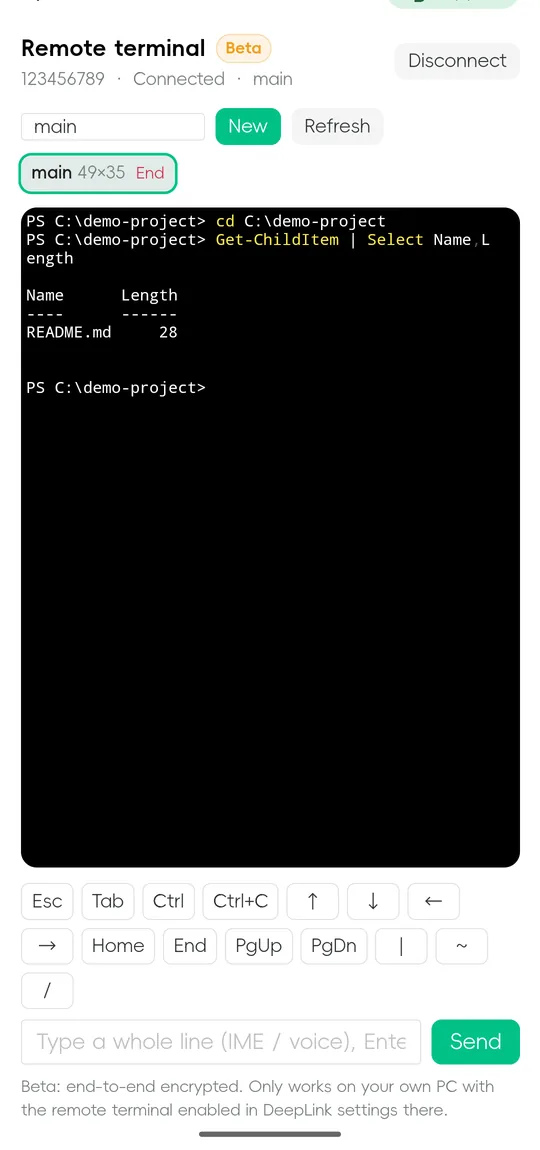
- Go to the project folder and start the tool:
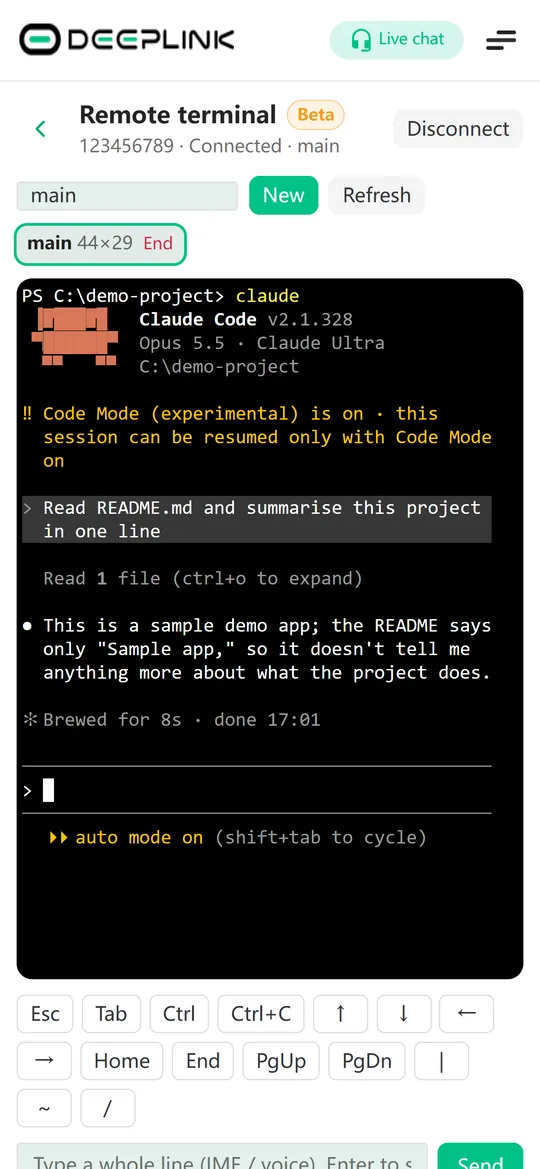
cdto your project folder, then start the AI tool as usual and type your instructions. - You can put the phone away: the session and the AI tool keep running on the PC when your phone disconnects. When you connect again you rejoin the same session and can see the output in the meantime.
What helps when typing on a phone
- The shortcut bar at the bottom: Esc, Tab, Ctrl, Ctrl+C, arrow keys, Home, End, PgUp, PgDn and more. Use it to pick an AI tool's options with the arrow keys or to stop it with Esc or Ctrl+C.
- The one-line input box: works with your keyboard's input method and voice input, and Enter sends it. Handy for dictating long instructions.
- Several sessions: you can open a separate session for each project, with up to 4 connections to one PC at the same time.
Things to watch out for
- The terminal and the AI tools in it run as the Windows user signed in on the PC. Whether an AI tool may change files or run commands is set in each tool, so check that tool's permission settings before you use it.
- Anyone with your wallet can run commands on this PC. Keep your wallet password safe and turn on 'Allow remote terminal' only when you need it.
- All open sessions end immediately when the PC is rented out, the setting is turned off, the wallet is changed or you log out. A session also ends automatically after 24 hours with no output and no connection.
- A remote licence is required (Pricing). It is not available in the internet-cafe (PC bang) version.
Frequently asked questions
Which AI coding tools can I use?
Remote Terminal opens the PC's PowerShell as it is, so you can run command-line tools installed on the PC. The example screen on this page shows Claude Code. Install each tool and sign in to it on the PC beforehand.
Does the AI job stop if my phone disconnects?
No. The session on the PC keeps running when your phone disconnects; when you connect again you rejoin the same session and can see the output in the meantime. A session ends automatically after 24 hours with no output and no connection, and also when the PC or the DeepLink service restarts.
Do the AI tools run with administrator rights?
No. Remote Terminal runs as the Windows user currently signed in on the PC, so tools started in it run with the same rights.
Remote Terminal is a beta feature. Features and conditions may change. Claude Code, Codex and Gemini CLI are products of their respective companies and are not affiliated with DeepLink.
Send beta feedback
Tell us what got in your way or what you would like to see through support. We use your feedback to improve the feature.